Server Remote Client

Server Remote Client Summary
Server Remote Client is a free, ad-supported iOS app in Lifestyle by Hieu Nguyen. Released in Jul 2026 (2 months ago). It has 2.00 ratings with a 3.20★ (mixed) average. Based on AppGoblin estimates, it reaches roughly 41 monthly active users and generates around $<10K monthly revenue (0% IAP / 100% ads). Store last updated Jul 30, 2026
Recent activity: 1.00 new ratings this week View trends →
Server Remote Client SDKs Summary
App not yet scanned for SDKs.
3.2★
Ratings: 2.00
Screenshots



App Description
Your desktop, in your hands.
Turn your iPhone or iPad into a full remote desktop controller. Whether you're away from the office, on the couch, or across the world — your computer is always just a tap away.
CONNECT IN SECONDS
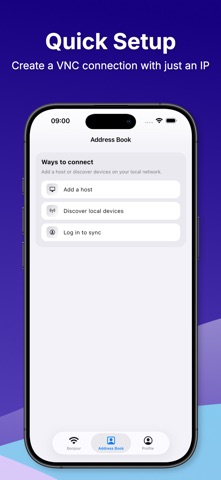
• Quick setup: enter a name, host/IP, and port — done
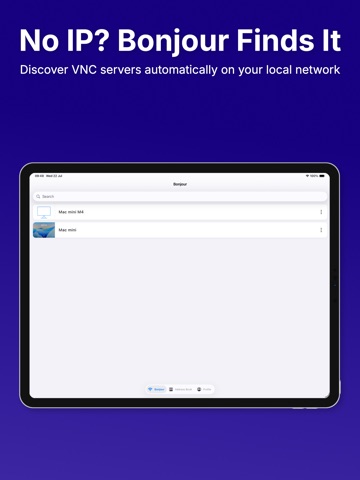
• LAN scanner: auto-discover VNC servers on your local network
• Ping check: confirm a server is online before you connect
• Share & Import: effortlessly share connection details via QR code or link, and import them directly without manual setup
• Saved connections with favorites, tags & folders to stay organized
• Detailed session history: save and review your past sessions, or jump back into your last connection instantly
• Powerful search: find any connection by name or IP
CONTROL THAT FEELS NATURAL
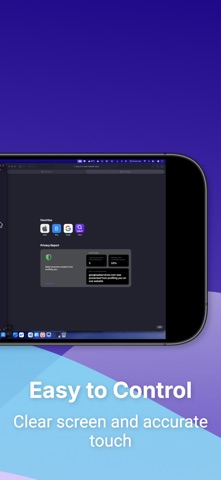
• Trackpad mode: move the pointer just like a laptop trackpad, with optional inertia
• Custom gesture mapping: assign 1/2/3-finger tap, long press, double tap, and pan to left click, right click, middle click, scroll, or drag
• Physical mouse support: connect a Bluetooth mouse with adjustable pointer speed and button swap
• Tilt control: tilt your device to scroll — no hands needed
• Apple Pencil support: precision tapping with optional predictive input
• Right-click via long press
PERFORMANCE & PRIVACY
• Quality presets: Low / Medium / High
• Auto-adapt: drops quality automatically on slow or unstable networks
• FPS limiter: 15 / 30 / 60 FPS to save battery and reduce heat
• Clipboard sync: copy and paste text between your device and remote computer
• Session recording & screenshots with privacy mode
• Auto-reconnect when your network drops
• Saved credentials protected by Keychain
• Face ID / Touch ID to unlock credentials instantly
• Sign in with Apple: securely sync your connection data across devices so you never lose your setups
HOW IT WORKS
1. Install any VNC Server on Windows, macOS, or Linux
2. Set a VNC password in your server settings
3. Open the app — scan your LAN or enter your IP manually
4. Tap Connect. You're in.
Built-in Help & Guide walks you through every step.